
TL;DR
- Real browser output. Puppeteer PDF generation is HTML-to-PDF done by printing what headless Chrome actually rendered, so CSS layout, web fonts, and JavaScript-driven content reach the file looking like they do on screen.
- Timing beats formatting. A bad PDF has usually been printed before the page finished loading, so waiting for the network and the page's own content to settle fixes more than any styling change will.
- Chrome costs you. The script itself stays small, but every browser you launch brings a cold start and a memory footprint, which is what caps how many PDFs one server can produce.
Introduction
Puppeteer PDF generation solves a problem you've probably hit, where a styled web page goes into a PDF library and the layout comes back mangled. Printing from headless Chrome avoids that, and Puppeteer is the Node library whose high-level API lets you control headless Chrome and Firefox. It makes a PDF by rendering your HTML in the browser and printing what the browser drew, though PDF work belongs to Chrome, since Firefox supports only a subset of the options below.
Because a real browser does the rendering, your JavaScript runs first, so a page built from dynamic data loading, AJAX requests, or client-side rendering arrives fully drawn instead of half-empty. The rest of this guide sticks to what survives production, from HTML strings and live URLs through page geometry and custom fonts to the deployment problems you meet once PDF generation leaves your laptop.
Puppeteer PDF generation quick start
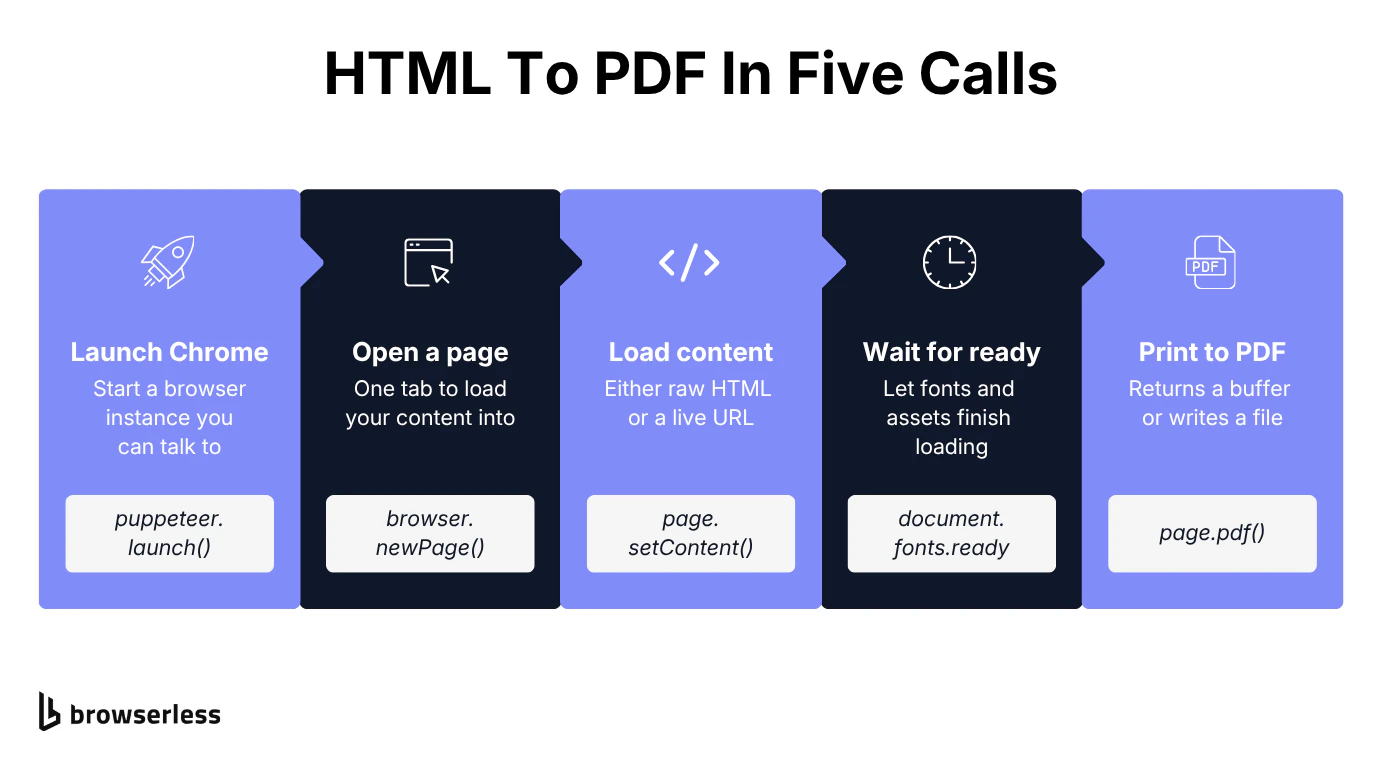
Whatever you're generating PDF files for, you're deciding where the HTML comes from and where the finished bytes go. Those two choices are independent, so any input pairs with any output, and everything else in this guide happens in the gap between them.
From HTML string to PDF
If you already have the markup, this is the shortest path. page.setContent() drops it straight into a headless page and page.pdf() prints it, no network request in between.
const puppeteer = require("puppeteer");
(async () => {
  const browser = await puppeteer.launch();
  const page = await browser.newPage();

  const htmlContent = `
    <!DOCTYPE html>
    <html>
      <head>
        <style>
          body { font-family: Arial, sans-serif; }
          h1 { color: #333; }
        </style>
      </head>
      <body>
        <h1>Hello from Puppeteer!</h1>
        <p>This is a simple HTML to PDF conversion.</p>
      </body>
    </html>
  `;
  await page.setContent(htmlContent);

  await page.pdf({ path: "output.pdf", format: "A4" });

  await browser.close();
})();
setContent() returns on the load event, which is plenty for inline markup and nowhere near enough once the page starts fetching its own assets.
From URL to PDF
When the content already lives at a URL, page.goto() takes over and nothing else changes, though waitUntil is worth watching because it decides how much of the page has loaded before Chrome prints, and it gets its own section further down.
const puppeteer = require("puppeteer");
(async () => {
  const browser = await puppeteer.launch();
  const page = await browser.newPage();
  await page.goto("https://example.com", {
    waitUntil: "networkidle2",
  });

  await page.pdf({
    path: "webpage.pdf",
    format: "A4",
  });

  await browser.close();
})();
Chrome prints with the print media type by default, so anything you styled behind @media screen will not show up. Call page.emulateMediaType("screen") before page.pdf() when you want the on-screen rendering instead.
Both examples dump straight to a file, which is one of three ways out.
Save, buffer, and stream PDFs
You can save to disk, hold a Buffer, or stream the bytes, and which one you want depends on what happens to the PDF next.
The first two build the whole document in memory before any of it moves. Fine for a two-page invoice, painful for a 400-page report, and past a certain size the renderer just dies on you with Page crashed!. createPDFStream() hands you chunks as Chrome produces them instead, so peak memory tracks the chunk and not the document.
Save to a file
Pass path and Puppeteer writes the PDF file for you, returning nothing you need to handle. Reach for it when the file is the deliverable, like a nightly job writing invoices.
const puppeteer = require("puppeteer");
(async () => {
  const browser = await puppeteer.launch();
  const page = await browser.newPage();
  await page.goto("https://example.com");

  // Save directly to file
  await page.pdf({ path: "document.pdf", format: "A4" });

  await browser.close();
})();
Return a Buffer
Drop path and the same call hands back a Buffer of the same bytes in PDF format, ready to become a response body or email attachment.
const puppeteer = require("puppeteer");
(async () => {
  const browser = await puppeteer.launch();
  const page = await browser.newPage();
  await page.goto("https://example.com");

  // Get PDF as buffer
  const pdfBuffer = await page.pdf({ format: "A4" });

  // Use the buffer (e.g., send via HTTP response)
  console.log("PDF size:", pdfBuffer.length, "bytes");

  await browser.close();
})();
Stream the response
createPDFStream() returns a web ReadableStream, not the Node stream most examples assume, so .pipe() is undefined and older snippets throw. Readable.fromWeb() converts it, and in an Express handler that's Readable.fromWeb(stream).pipe(res), streaming to the client as Chrome renders and never holding the document in memory.
const puppeteer = require("puppeteer");
const { createWriteStream } = require("fs");
const { Readable } = require("stream");
const { pipeline } = require("stream/promises");

(async () => {
  const browser = await puppeteer.launch();
  const page = await browser.newPage();
  await page.goto("https://example.com");

  // Stream the PDF to disk without buffering it whole
  const pdfStream = await page.createPDFStream({ format: "A4" });
  await pipeline(Readable.fromWeb(pdfStream), createWriteStream("streamed.pdf"));

  await browser.close();
})();
Formatting options for HTML to PDF generation
Output gets controlled in two places that are easy to confuse. The Puppeteer options you pass page.pdf() set the paper, while print CSS inside the document decides what's drawn on it. Mix them up and you get a PDF that's the right size with the wrong content.
They meet at preferCSSPageSize, which tells Chrome to take page size from your @page rule and ignore format. The full option reference lists every setting with its default.
Page size and orientation
Set paper size by name or exact dimensions, never both. If format is present Chrome uses it and quietly ignores width and height, so a script that sets all three won't honor your dimensions.
const puppeteer = require("puppeteer");
(async () => {
  const browser = await puppeteer.launch();
  const page = await browser.newPage();

  // The viewport is the layout width Chrome renders at before printing
  await page.setViewport({ width: 1200, height: 800 });
  await page.goto("https://example.com");

  // Named paper size.
  await page.pdf({
    path: "letter.pdf",
    format: "Letter", // A4, Legal, Letter, Tabloid
    landscape: true, // Portrait (false) or Landscape (true)
    scale: 0.8, // 0.1 to 2
  });

  // Exact dimensions. Omit format entirely, or these are ignored.
  await page.pdf({
    path: "custom-size.pdf",
    width: "8.5in",
    height: "11in",
    scale: 0.8,
  });

  await browser.close();
})();
scale applies to the rendered content, not the paper, so 0.8 fits more on a page. In testing, a long document that ran to 10 pages at scale: 1 came out at 8 pages once scaled to 0.8.
Margins, print CSS, and @page rules
Margins come from the options object, while everything about how the document prints is CSS, with @page setting the page box and @media print hiding the parts of a page that only make sense on screen.
const puppeteer = require("puppeteer");
(async () => {
  const browser = await puppeteer.launch();
  const page = await browser.newPage();

  const htmlContent = `
    <!DOCTYPE html>
    <html>
      <head>
        <style>
          @page {
            size: A4;
            margin: 20mm;
          }
          @media print {
            body { color: black; }
            .no-print { display: none; }
          }
          body {
            font-family: Arial, sans-serif;
          }
        </style>
      </head>
      <body>
        <h1>Document with Print CSS</h1>
        <p>This content will appear in the PDF.</p>
        <p class="no-print">This won't appear in the PDF.</p>
      </body>
    </html>
  `;
  await page.setContent(htmlContent);

  await page.pdf({
    path: "with-margins.pdf",
    format: "A4",
    margin: {
      top: "20mm",
      right: "15mm",
      bottom: "20mm",
      left: "15mm",
    },
    printBackground: true, // Include background colors and images
  });

  await browser.close();
})();
.no-print is the part worth stealing here. Anything @media print hides is absent from the PDF, which is how you strip nav bars and cookie banners out of a page you don't own.
Custom fonts, images, and assets
If a PDF looks wrong, external resources like Google Fonts and images are the usual culprit, given that page.pdf() will happily print a page whose assets haven't arrived. Non-Latin scripts and emoji fail a second way, where Chrome substitutes and leaves you boxes unless a font covering those glyphs has loaded.
const puppeteer = require("puppeteer");

(async () => {
  const browser = await puppeteer.launch();
  const page = await browser.newPage();

  const htmlContent = `
    <!DOCTYPE html>
    <html>
      <head>
        <meta charset="UTF-8">
        <link rel="preconnect" href="https://fonts.googleapis.com">
        <link rel="preconnect" href="https://fonts.gstatic.com" crossorigin>
        <link href="https://fonts.googleapis.com/css2?family=Noto+Sans+JP:wght@400;700&family=Roboto:wght@400;700&display=swap" rel="stylesheet">
        <style>
          body { font-family: 'Roboto', sans-serif; }
          .japanese { font-family: 'Noto Sans JP', sans-serif; }
          img { max-width: 100%; height: auto; }
        </style>
      </head>
      <body>
        <h1>Document with custom fonts and images</h1>
        <img src="https://placehold.co/600x200.png" alt="Example">
        <p>Latin text in Roboto, with symbols: ★ ♥ ✓</p>
        <p class="japanese">日本語のテキスト (Japanese text)</p>
        <p>Emoji: 😀 🎉 🚀</p>
      </body>
    </html>
  `;

  await page.setContent(htmlContent, {
    waitUntil: ["load", "networkidle0"], // every asset request has finished
  });

  // networkidle0 covers the requests, this covers the font system
  await page.evaluateHandle("document.fonts.ready");

  await page.pdf({
    path: "with-assets.pdf",
    format: "A4",
    printBackground: true,
  });

  await browser.close();
})();
networkidle0 is the wait that matters here, since it tells you the font files arrived. page.pdf() already waits on document.fonts.ready by default through its waitForFonts option, and the explicit call above only matters on older Puppeteer versions or before a page.screenshot(). The preconnect links shave a round trip off a render already waiting on the network, and there's a fuller write-up of Puppeteer font problems for what those two don't fix.
Headers and footers with dynamic page numbers
Treat headers and footers as their own small HTML documents, injected separately from the page. They inherit none of your styles, so style them inline. Chrome fills in any span with the class pageNumber, totalPages, date, title or url as it prints.
const puppeteer = require("puppeteer");
(async () => {
  const browser = await puppeteer.launch();
  const page = await browser.newPage();
  await page.goto("https://example.com");

  await page.pdf({
    path: "with-headers-footers.pdf",
    format: "A4",
    displayHeaderFooter: true,
    headerTemplate: `
      <div style="font-size: 10px; width: 100%; text-align: center; color: #666;">
        <span>Company Name - Confidential</span>
      </div>
    `,
    footerTemplate: `
      <div style="font-size: 10px; width: 100%; text-align: center; color: #666;">
        <span>Page <span class="pageNumber"></span> of <span class="totalPages"></span></span>
      </div>
    `,
    margin: {
      top: "40px", // Make room for header
      bottom: "40px", // Make room for footer
    },
  });

  await browser.close();
})();
Those spans only work inside the templates, so <span class="pageNumber"> in your page body just stays empty. The explicit margin values matter as much. They give the header and footer a band of their own, and Puppeteer's defaults reserve none, so your templates still render but land on top of the content.
Troubleshooting Puppeteer PDF issues
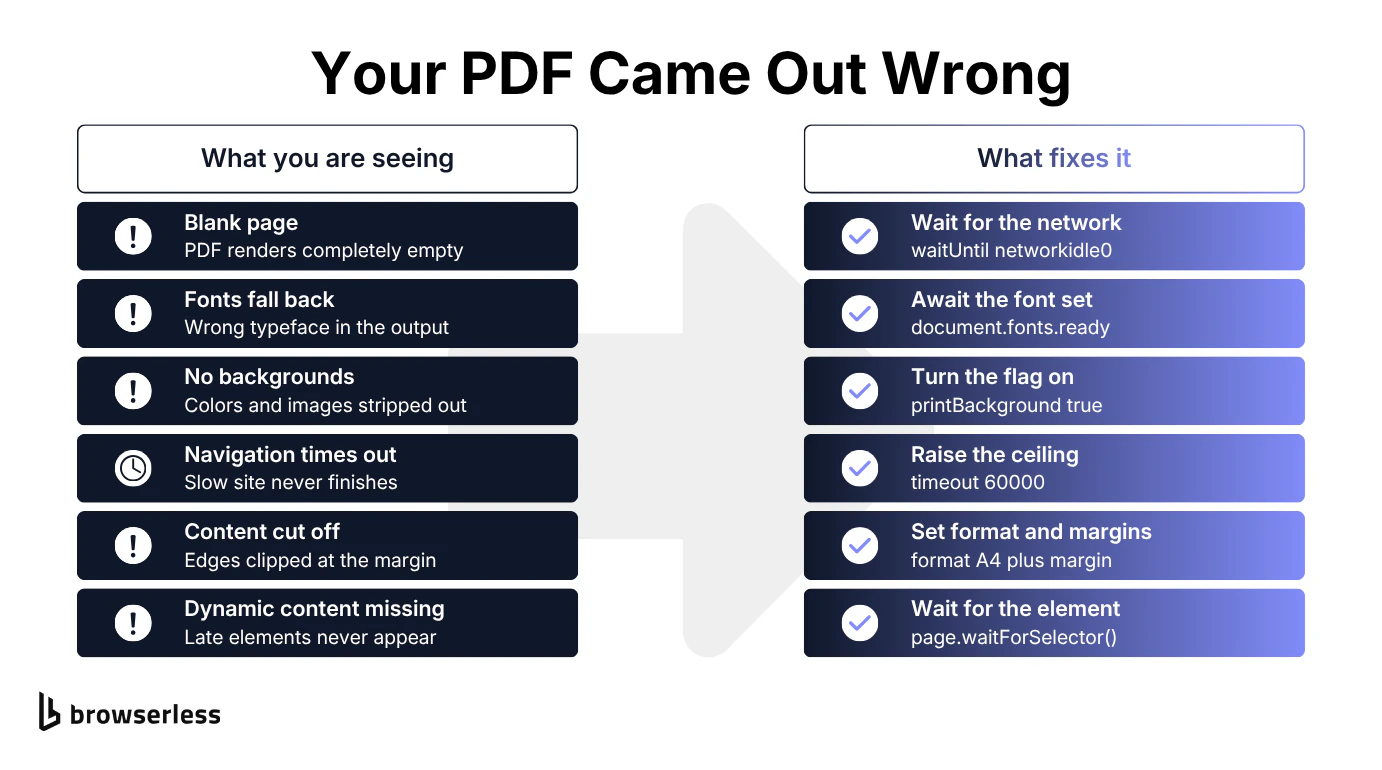
When a PDF comes out wrong, timing is a more common cause than formatting. Chrome prints whatever the page looks like the instant page.pdf() runs, so anything still in flight just isn't in the file.
Blank pages and missing background colors
A blank or half-drawn page means Chrome printed before your content was ready. Simple pages rarely hit it, but anything pulling a font, an image, or network data can. Missing backgrounds look like the same bug and aren't, since printBackground defaults to false and drops backgrounds until you turn it on, and the snippet below handles both.
const puppeteer = require("puppeteer");
(async () => {
  const browser = await puppeteer.launch();
  const page = await browser.newPage();

  // Fix: Wait for content to load properly
  await page.goto("https://example.com", {
    waitUntil: ["load", "networkidle0"], // Wait for all resources
  });

  // Fix: Ensure fonts are loaded
  await page.evaluateHandle("document.fonts.ready");

  // Fix: Add delay for dynamic content
  await new Promise((resolve) => setTimeout(resolve, 2000));

  await page.pdf({
    path: "complete.pdf",
    format: "A4",
    printBackground: true, // Ensure backgrounds render
  });

  await browser.close();
})();
That fixed two-second wait at the end is the blunt version of the fix. The next section covers what to use instead.
Timeouts vs. waitForNetworkIdle
You've got four ways to decide a page is ready, and they fail differently. Both network-idle options watch open network connections and both want the condition held for 500 ms, but networkidle0 waits for zero while networkidle2 tolerates two. That gap bites on a page holding an analytics socket or a long-poll open forever, where waiting for zero never returns.
Waiting on a selector is more precise, but only if you name a DOM element the page really renders. Pick one that never shows up and your script stalls until the timeout throws.
page.waitForNetworkIdle() covers the case the navigation options miss, where content arrives from a fetch fired after the page already finished loading. A fixed sleep is the last resort, and it is either too short on a slow day or wasted time on a fast one.
const puppeteer = require("puppeteer");
(async () => {
  const browser = await puppeteer.launch();
  const page = await browser.newPage();

  // Strategy 1: wait for the network to settle during navigation. Faster for static pages.
  await page.goto("https://example.com", {
    waitUntil: "networkidle2", // 2 or fewer connections for 500ms
    timeout: 60000, // raise for slow sites
  });

  // Strategy 2: wait for an element the page really renders.
  await page.goto("https://example.com", { waitUntil: "domcontentloaded" });
  await page.waitForSelector("p", { timeout: 10000 });

  // Strategy 3: wait for the network to go quiet after navigation,
  // for content that arrives from a later fetch.
  await page.waitForNetworkIdle({ idleTime: 500, timeout: 30000 });

  // Strategy 4: fixed delay. Use only when the others can't work.
  await page.goto("https://example.com");
  await new Promise((resolve) => setTimeout(resolve, 3000));

  await page.pdf({ path: "loaded.pdf", format: "A4" });

  await browser.close();
})();
Browserless has a longer breakdown of the waitUntil options and what each measures.
That gets correct output on one machine, but keeping it correct under load is a different problem.
The cost of running a headless browser for PDFs
You're launching an entire browser to print a static file. That's worth it when the document needs real CSS layout and JavaScript execution, which lightweight PDF libraries don't attempt. You just tend to pay for it later, in production.
Every headless Chromium browser Puppeteer launches carries a cold start and a memory footprint before it renders a page, and that footprint grows with heavy images or web fonts. Concurrency is where that footprint hurts most. Your server holds only so many Chromium browser instances at once, and concurrent requests then push performance issues into response times, so the memory ceiling rather than your code caps how many PDFs a minute you can produce. More on squeezing speed out of one instance if you're not there yet.
Running Puppeteer PDF generation in production
Getting a laptop script onto a server means cleanup that runs when rendering fails, a Chromium in your deployment image, and a decision about what happens when requests land at once.
Error handling and browser cleanup
Every snippet above closes the browser on the happy path only. Let page.goto() throw and browser.close() never runs, leaving that Chromium to outlive the request. Move the close into a finally block and it runs whether the render returned or blew up.
const puppeteer = require("puppeteer");
async function renderPdf(url) {
  const browser = await puppeteer.launch();
  try {
    const page = await browser.newPage();
    await page.goto(url, { waitUntil: "networkidle2", timeout: 30000 });
    return await page.pdf({ format: "A4", printBackground: true });
  } finally {
    await browser.close();
  }
}
renderPdf("https://example.com")
  .then((pdf) => console.log("PDF size:", pdf.length, "bytes"))
  .catch((err) => {
    console.error("PDF generation failed:", err.message);
    process.exitCode = 1;
  });
The timeout matters as much as the cleanup. Without one, a page that never settles holds the browser open until something else kills the process, the same leak in slow motion.
Running Puppeteer in a Docker image
Installing puppeteer doesn't put a browser in node_modules. Since v19 the browser lives in a shared cache at ~/.cache/puppeteer, and current versions download Chrome for Testing there, which is why a Dockerfile that copies node_modules out of a build stage leaves you with a working install and no browser behind it. There's a fuller walkthrough of running Puppeteer in Docker if you're setting one up from scratch.
The official image sidesteps that by shipping both. You get Chrome for Testing, the system libraries Chrome needs, and a matching Puppeteer version already installed.
FROM ghcr.io/puppeteer/puppeteer:latest
WORKDIR /app
COPY package*.json ./
RUN npm ci
COPY . .
CMD ["node", "render.js"]
Build on a slim base instead and you're on the hook for Chrome's shared library dependencies, where a missing one gives you a launch error pointing nowhere near the cause. The official image runs the browser sandboxed, needing the SYS_ADMIN capability at run time, and where you can't grant that the usual workaround is --no-sandbox and --disable-setuid-sandbox, which remove a layer of isolation. Keep them for a container you control and away from anything rendering untrusted HTML.
Puppeteer on AWS Lambda and serverless environments
Lambda caps a deployment package at 250 MB unzipped and a full Chromium build doesn't fit. Either package the function as a container image, where the ceiling jumps to 10 GB, or pair puppeteer-core with a Chromium build compressed for serverless like @sparticuz/chromium, the maintained successor to the long-abandoned chrome-aws-lambda.
puppeteer-core is the same library minus the bundled browser, so it expects you to supply an executablePath. @sparticuz/chromium is an ES module as of v149, so the handler below uses import and needs a .mjs file or "type": "module" in your package.
import chromium from "@sparticuz/chromium";
import puppeteer from "puppeteer-core";

export const handler = async (event) => {
  const browser = await puppeteer.launch({
    args: chromium.args,
    executablePath: await chromium.executablePath(),
    headless: true,
  });
  try {
    const page = await browser.newPage();
    await page.goto(event.url, { waitUntil: "networkidle2", timeout: 30000 });
    const pdf = await page.pdf({ format: "A4", printBackground: true });
    return {
      statusCode: 200,
      headers: { "Content-Type": "application/pdf" },
      body: pdf.toString("base64"),
      isBase64Encoded: true,
    };
  } finally {
    await browser.close();
  }
};
The Lambda-specific tax is unpacking and booting Chromium on every cold invocation, so a function that generates PDFs only now and then spends more time starting browsers than using them. Browserless has a walkthrough of deploying Puppeteer on AWS Lambda with more on the packaging.
Scaling headless Chrome beyond one server
One browser per request is the simplest model and the first one to fall over. Reusing a single browser and opening a new page per job costs you far less, though you're trading isolation for throughput, and one bad page can take its neighbors down with it.
Past a certain volume the problem stops being your code. Sizing a pool, recycling browsers before they leak, keeping cold starts off the critical path, none of it has much to do with the PDF.
Browserless runs that layer as a separate service, so the same script connects to a managed pool over WebSocket rather than launching Chromium locally, the way Vivian Health absorbed on-demand PDF spikes without sizing for peak. The same session best practices apply either way, and a short-lived session you always close is what keeps a pool healthy.
const puppeteer = require("puppeteer-core");
(async () => {
  const browser = await puppeteer.connect({
    browserWSEndpoint: `wss://production-sfo.browserless.io?token=${process.env.BROWSERLESS_TOKEN}`,
  });
  try {
    const page = await browser.newPage();
    await page.goto("https://example.com", { waitUntil: "networkidle2" });
    const pdf = await page.pdf({ format: "A4", printBackground: true });
    console.log("PDF size:", pdf.length, "bytes");
  } finally {
    await browser.close();
  }
})();
Or skip Puppeteer and let the /pdf REST endpoint do the job from a plain HTTP request. It takes a URL or HTML string plus the same options you would hand page.pdf(), and adds waitForSelector, waitForFunction, gotoOptions and addStyleTag, so the waiting and styling fixes in this guide carry straight over. The PDF generation API page walks through the endpoint's options and a quickstart in cURL, Node.js and Python.
Conclusion
Puppeteer earns its place on the jobs simpler libraries don't attempt, because it prints what a real browser rendered instead of what a drawing API was told to draw. The surface you actually touch stays small, so you can load with setContent() or goto(), print with page.pdf(), and let print CSS handle how the document looks.
What costs you is the Chrome underneath it. Every script in this guide runs unchanged against a managed browser, so you keep page.pdf() exactly as written and hand off the cold starts, the memory ceiling, and the orphaned Chromium processes. If that's the trade you want, sign up for Browserless and run your PDF generation there.
Puppeteer PDF FAQs
Can Puppeteer convert HTML to PDF with CSS?
Yes, Puppeteer applies CSS styling exactly as a browser would, so Grid, Flexbox, custom fonts, gradients and media queries all survive into the PDF.
Backgrounds are the exception, dropped unless you set printBackground, and page geometry comes from your @page rule rather than the viewport once preferCSSPageSize is on, and the formatting section covers both.
How do I add a stylesheet to HTML before converting it to PDF?
There are four ways to get CSS onto the page, and the snippet below covers all of them.
const puppeteer = require("puppeteer");
(async () => {
  const browser = await puppeteer.launch();
  const page = await browser.newPage();

  // Method 1: a <style> block in the markup itself
  await page.setContent(`
    <html>
      <head>
        <style>
          body { font-family: Arial; color: #333; }
          h1 { color: #0066cc; }
        </style>
      </head>
      <body><h1>Styled Content</h1></body>
    </html>
  `);

  // Method 2: a stylesheet fetched over the network
  await page.addStyleTag({
    url: "https://cdn.jsdelivr.net/npm/normalize.css@8.0.1/normalize.css",
  });

  // Method 3: CSS passed in as a string
  await page.addStyleTag({
    content: "body { background: white; margin: 20px; }",
  });

  // Method 4: a stylesheet on disk, resolved from the working directory.
  // Uncomment once the file exists, otherwise this throws ENOENT.
  // await page.addStyleTag({ path: "./styles.css" });

  await page.pdf({ path: "styled.pdf", format: "A4" });

  await browser.close();
})();
The order you call them in matters. Each addStyleTag() call appends to the end of <head>, so a later rule beats an earlier one at equal specificity.
How to add a library in HTML and generate a PDF?
Puppeteer gives you a few ways to inject an external library before you print, and each lands at a different point in the render.
const puppeteer = require("puppeteer");
(async () => {
  const browser = await puppeteer.launch();
  const page = await browser.newPage();

  // Method 1: load the library in the markup and use it there.
  // animation: false matters, an animating chart may not be finished
  // drawing at the moment page.pdf() captures the page.
  await page.setContent(
    `
    <html>
      <head>
        <script src="https://cdn.jsdelivr.net/npm/chart.js"></script>
      </head>
      <body>
        <canvas id="myChart"></canvas>
        <script>
          const ctx = document.getElementById('myChart').getContext('2d');
          new Chart(ctx, {
            type: 'bar',
            data: { labels: ['A', 'B', 'C'], datasets: [{ data: [10, 20, 30] }] },
            options: { animation: false }
          });
        </script>
      </body>
    </html>
  `,
    { waitUntil: "networkidle0" },
  );

  // Method 2: inject a library from a URL after load
  await page.addScriptTag({
    url: "https://cdnjs.cloudflare.com/ajax/libs/lodash.js/4.17.21/lodash.min.js",
  });

  // Method 3: inject code as a string
  await page.addScriptTag({
    content: 'console.log("Script injected");',
  });

  // Method 4: inject a script from disk, resolved from the working directory.
  // Uncomment once the file exists, otherwise this throws ENOENT.
  // await page.addScriptTag({ path: "./my-library.js" });

  await page.pdf({ path: "with-library.pdf", format: "A4" });

  await browser.close();
})();
addScriptTag() resolves only once the script has loaded and run, so anything it draws is already on the page by the time page.pdf() fires.
Can Puppeteer generate PDF without a visible browser?
Yes, Puppeteer runs headless by default, so no window opens at any point, which makes it usable on a server with no display. Browserless does the same remotely.
What's the difference between Puppeteer and jsPDF for generating PDFs?
They are built for different problems entirely. jsPDF builds a PDF from scratch in code, so you place text, shapes, and images on the page yourself through its drawing API with no HTML or CSS involved. Puppeteer renders an actual HTML page in headless Chrome and prints that render, inheriting real CSS layout, web fonts, and JavaScript-driven content along the way.
Pick jsPDF for small, code-generated documents with no HTML to start from. Pick Puppeteer when you already maintain PDF templates as web pages, when the output has to match an existing page's styling, or when the content depends on client-side rendering.
Is there a Puppeteer PDF generator package, or should I use page.pdf() directly?
Use it directly and skip the wrapper. Puppeteer's own page.pdf() is the canonical Puppeteer PDF generator, it ships in the core API, and its options already cover page size, margins, headers, and footers.
Thin npm wrappers exist on top of it, mostly convenience helpers that template the HTML before the same page.pdf() call runs underneath, and the dependency is usually all they add. Calling page.pdf() yourself, or handing the job to the Browserless PDF API when you'd rather not manage a browser, leaves less to maintain.
Can I embed a PDF into an HTML page?
Yes, though it's a separate job from generating one. Point an <iframe> or <embed> at the PDF's URL to display it inline. That shows an existing PDF, it doesn't create one. To produce the file, use page.pdf() as shown throughout this guide.
Does Flexbox work in a Puppeteer PDF?
Yes, and it behaves exactly as it does on screen, thanks to Chrome laying the page out before it prints. A row set to display: flex with justify-content: space-between and align-items: center pushes one label hard left and the other hard right, which is how most PDF header rows get built, and a border-bottom under that row gives you the rule beneath it. Printed to A4, those two ends land at 6pt and 590pt of a 595pt page, so the space between them is real rather than approximated.
How do you set up server side PDF generation with Puppeteer?
Server side PDF generation is the default case for Puppeteer, which runs headless and needs no display attached. Wrap the render in a function, give it a try/finally so the browser closes even when the page throws, and return the Buffer as your response body.
The source code in the error handling section above is that function, and a Puppeteer HTML to PDF service is usually little more than it behind an HTTP route. What changes later is volume, because PDFs generated comfortably on one box start queueing once several land at the same moment.
Is Puppeteer free to use?
Yes, Puppeteer is open source under the Apache 2.0 license, maintained by the Chrome DevTools team, and there's no cost to npm install puppeteer or call page.pdf(). The bill arrives as infrastructure rather than licensing, which the cost section above covers.