
TL;DR
- Walmart scraping. Pulling structured Walmart product data (titles, prices, ratings, stock, reviews) out of Walmart's search results and product detail pages, usually for price monitoring, market research, or competitor analysis.
- Puppeteer gets you started. A plain Puppeteer script works for small jobs, but Walmart's anti-bot measures (CAPTCHAs, IP blocks, fingerprinting) will stop you fast at scale.
- The stealth-first answer. BrowserQL is a GraphQL API with humanized interactions, residential proxies, and a
solvemutation that auto-clears CAPTCHAs. - What's covered. Collecting product URLs, parsing details with Cheerio, handling CAPTCHAs and rate limiting, plus a Python version using
import requests.
Walmart is a go-to platform for millions of shoppers and a useful source of product data for web scraping and market research. Whether you want to monitor price changes, track stock, or dig into review data, scraping Walmart can surface signals you wouldn't otherwise see. But Walmart actively pushes back on automated traffic, and traditional scraping tools tend to fall over against CAPTCHA defenses, rate limiting, browser fingerprinting, and dynamically loaded content.
In this guide, you'll learn how to scrape Walmart end-to-end. You'll pull product URLs from a Walmart search results page, parse out detailed product data from individual product pages, and keep things running when Walmart's site pushes back. You'll start with a classic Puppeteer approach, then switch to BrowserQL, which is built specifically for sites with bot protection and ships with CAPTCHA solving via the solve mutation.
What you can scrape from Walmart
Before scraping Walmart, it's good to know how the site is laid out. Walmart organizes product data into a few predictable surfaces (search results pages, product detail pages, review pages), so once you know the shape, finding what you need gets easier.
Use cases for scraping Walmart
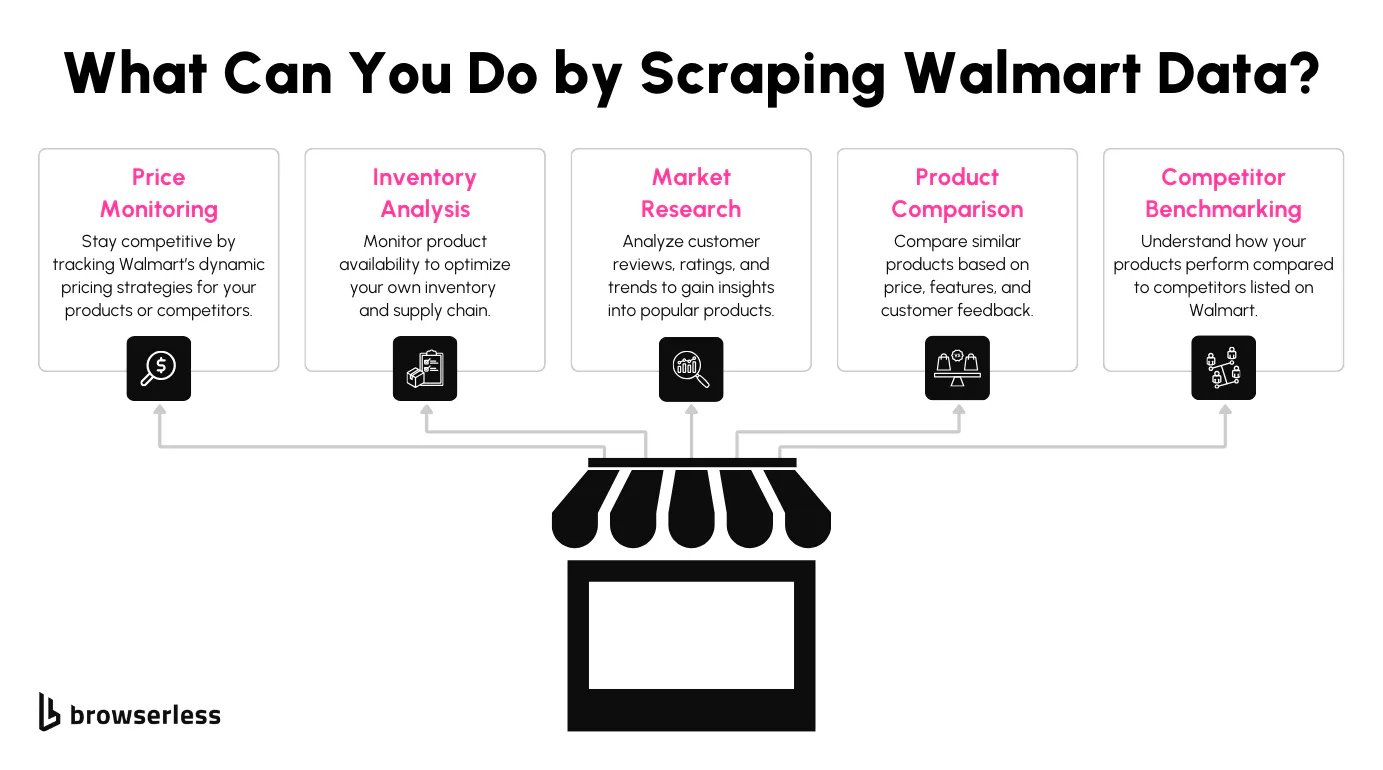
Scraping Walmart can help you unlock a ton of insights. Whether you're tracking prices to stay competitive, analyzing reviews to understand customer sentiment, or gathering stock data to monitor availability, there's so much value to be found. It's a great way to build data-driven pricing, inventory, and market analysis strategies.
What data can you scrape from Walmart?
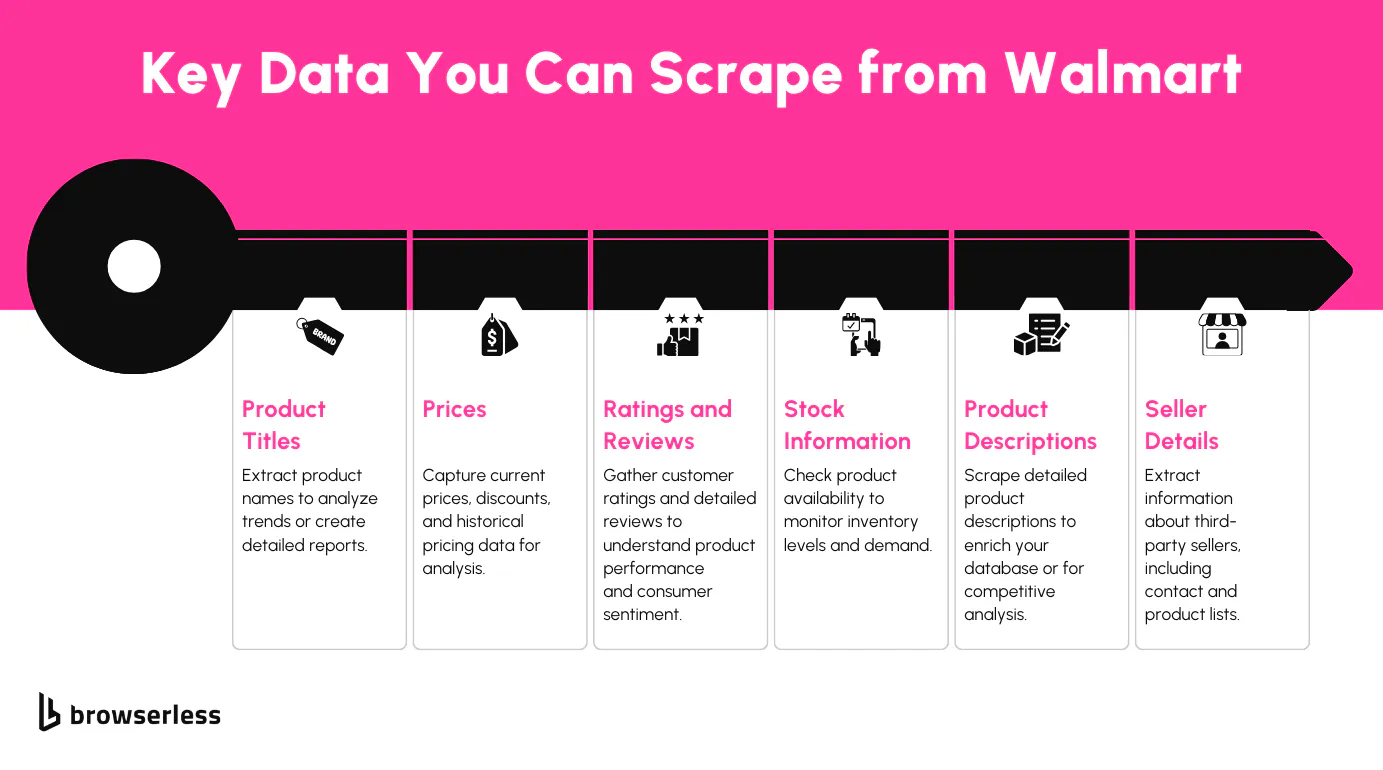
Walmart's site exposes a lot of useful details. You can extract product titles, Walmart prices, specifications, and seller information. Customer reviews and stock availability give you more depth. With a working Walmart scraper, every search results page and product page becomes a source of structured Walmart data you can plug into pricing models, dashboards, or feeds.
Product search results pages
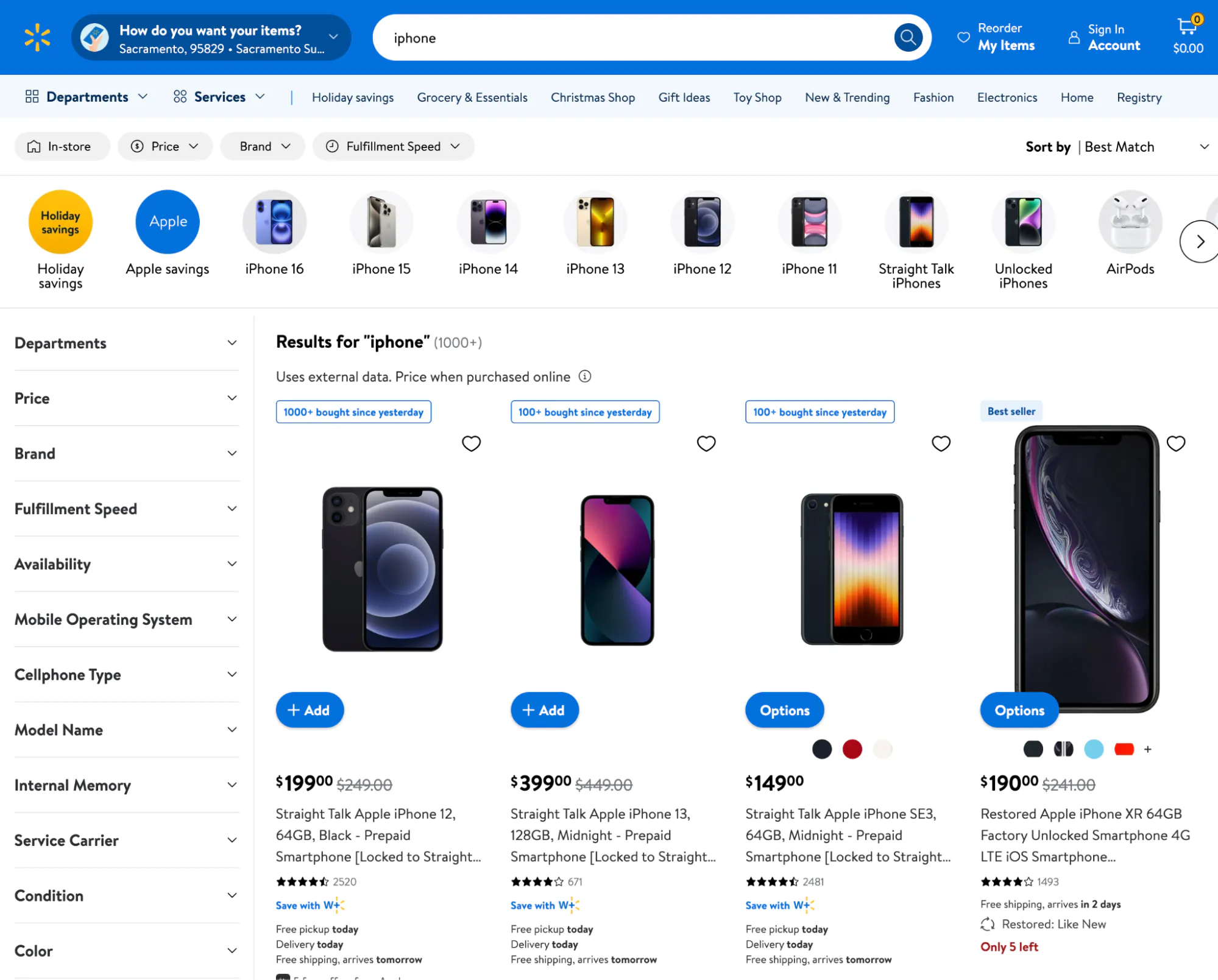
The Walmart search results page gives you a quick overview of products that match your query. These pages contain the basic data points you'll need to start scraping.
Key elements:
- Product titles.
- Product price.
- Star ratings.
- Links to product pages.
Walmart search pages often use infinite scrolling or pagination, so plan for multiple pages when pulling data.
Product detail pages
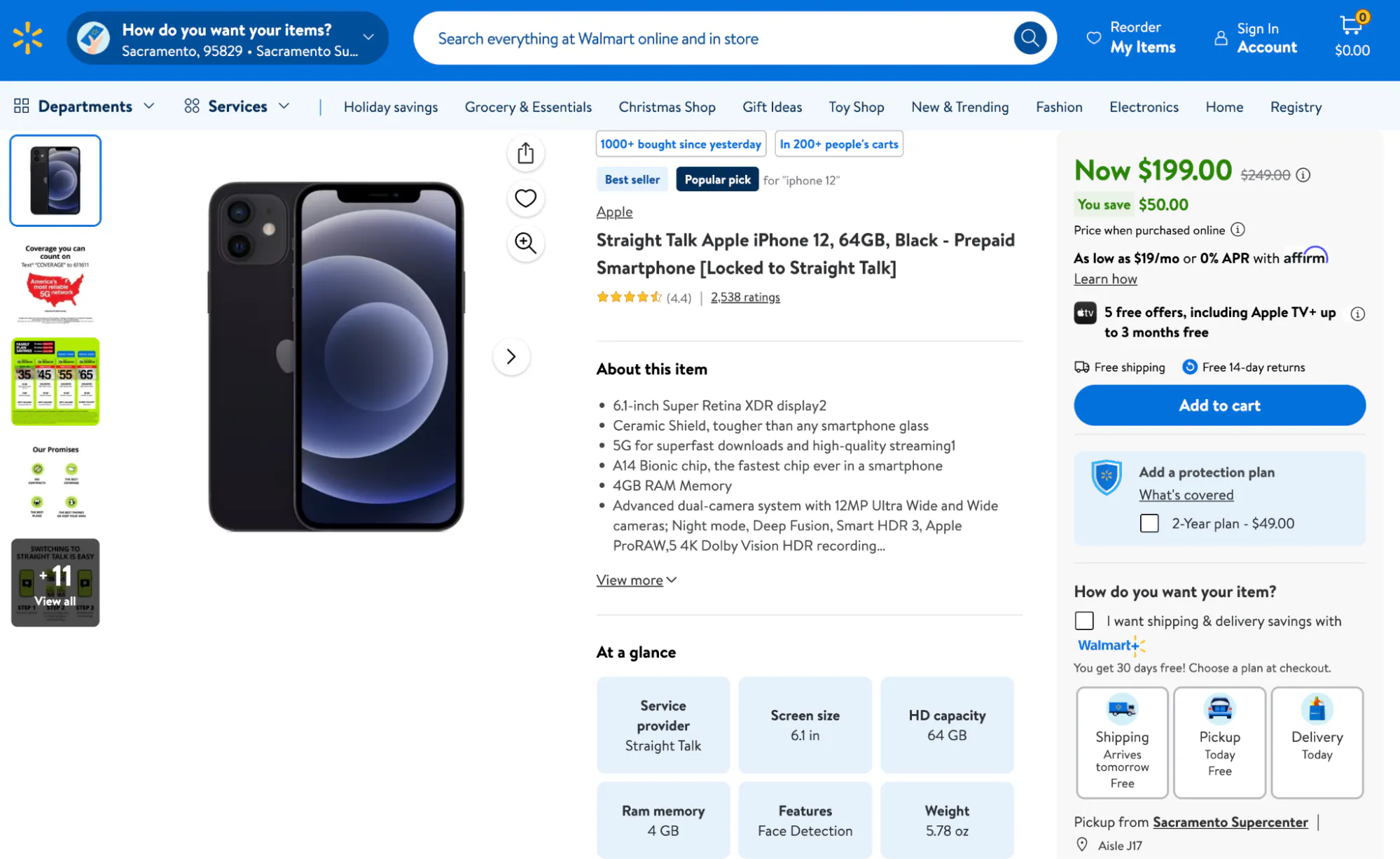
When you click into a product, the product page exposes the data that's useful for deeper analysis.
Data points:
- Detailed descriptions.
- Specifications (size, materials, etc.).
- Stock status (in stock, and how many are left).
- Customer reviews and ratings.
- Seller information.
Some sections load dynamically, so your script needs to wait on the right network state or selectors.
How to scrape Walmart with Puppeteer
Puppeteer is a popular library for browser automation and scraping. Here, you'll walk through two short scripts: one for collecting product URLs from a Walmart search results page, and another for scraping detail from each product page.
Step 1: Setting up your environment
Before you start, make sure you have the following in place:
- Node.js – install Node.js if you don't already have it.
- Puppeteer – install Puppeteer with the command
npm install puppeteer. - Basic JavaScript knowledge – you'll need to tweak the script as needed.
You'll be writing two short scripts: one to collect product URLs from a Walmart search page, and another to extract product details like name, reviews, rating, and price.
Step 2: Collecting products from the search page
Walmart's search URLs are straightforward: https://www.walmart.com/search?q={product_name}. For example, searching for "iPhone" gives you https://www.walmart.com/search?q=iphone. The script below uses a hardcoded URL to pull product links while adding human-like interactions to reduce CAPTCHA triggers.
import puppeteer from "puppeteer";
import fs from "fs/promises";

const sleep = (ms) => new Promise((resolve) => setTimeout(resolve, ms));

(async () => {
  const SEARCH_URL = "https://www.walmart.com/search?q=iphone";
  const OUTPUT_FILE = "walmart-product-urls.csv";

  try {
    // Start a browser session with headless mode off
    const browser = await puppeteer.launch({ headless: false });
    const page = await browser.newPage();

    console.log(`Heading over to ${SEARCH_URL}...`);
    await page.goto(SEARCH_URL, { waitUntil: "networkidle2" });

    // Add some scrolling to make things look more natural
    console.log("Scrolling through the page like a real user...");
    await page.evaluate(async () => {
      for (let i = 0; i < 5; i++) {
        window.scrollBy(0, 1000);
        await new Promise((resolve) =>
          setTimeout(resolve, 500 + Math.random() * 1000),
        );
      }
    });

    // Simulate mouse movement to mimic user behavior
    console.log("Moving the mouse around to blend in...");
    const clientHeight = await page.evaluate(() => document.body.clientHeight);
    for (let i = 0; i < 5; i++) {
      await page.mouse.move(Math.random() * 500, Math.random() * clientHeight, {
        steps: 10,
      });
      await sleep(500 + Math.random() * 1000);
    }

    // Grab product links from the page
    console.log("Extracting product URLs...");
    const productUrls = await page.evaluate(() => {
      const links = [];
      document.querySelectorAll('a[href*="/ip/"]').forEach((el) => {
        const href = el.getAttribute("href");
        if (href) links.push(`https://www.walmart.com${href}`);
      });
      return links;
    });

    console.log(`Found ${productUrls.length} product URLs!`);
    console.log("Saving them to a CSV file...");

    // Save the URLs into a CSV
    const csvData = productUrls.map((url) => `"${url}"`).join("\n");
    await fs.writeFile(OUTPUT_FILE, csvData);
    console.log(`URLs saved to ${OUTPUT_FILE}.`);

    await browser.close();
  } catch (error) {
    console.error("Uh-oh, something went wrong:", error);
  }
})();
What's happening?
SEARCH_URL– the Walmart search results page URL for your query, in this case, "iPhone."- Starting the browser – Puppeteer launches with
headless: falseso the scraper looks more like a regular user. - Scrolling – simulates natural scrolling behavior with pauses and randomness to avoid detection.
- Mouse movement – random mouse movements add another layer of human-like interaction.
- Extracting links – the script identifies all
<a>tags with/ip/in theirhref, which are unique to Walmart product pages, and saves the full URLs. - Saving the data – all the extracted URLs are written to a CSV file for further processing.
Step 3: Collecting product details from URLs
With the URLs collected, you can now extract product data such as title, price, and ratings. This script reads URLs from the CSV file, visits each product page, and scrapes the details.
import puppeteer from "puppeteer";
import fs from "fs";

// Constants
const INPUT_FILE = "walmart-product-urls.csv";
const OUTPUT_FILE = "walmart-product-details.csv";
const MAX_RETRIES = 3;

// Utility function to sanitize URLs
const sanitizeUrl = (url) => {
  try {
    return encodeURI(url.trim().replace(/^"|"$/g, ""));
  } catch (error) {
    console.error(`Invalid URL skipped: ${url}`);
    return null;
  }
};

// Function to scrape product details
const scrapeProductDetails = async (page, url, retries = 0) => {
  try {
    console.log(`Visiting "${url}"...`);
    await page.goto(url, {
      waitUntil: "networkidle2",
      timeout: 60000,
    });

    // Extract product details
    return await page.evaluate(() => {
      const getText = (selector) =>
        document.querySelector(selector)?.innerText.trim() || "N/A";
      const name = getText("#main-title");
      const price = getText('[itemprop="price"]');
      const ratingElement = document.querySelector(
        'span[itemprop="ratingValue"]',
      )?.innerText;
      const ratingCountElement = document.querySelector(
        '[itemprop="ratingCount"]',
      )?.innerText;
      const rating =
        ratingElement && ratingCountElement
          ? `${ratingElement} stars from ${ratingCountElement} reviews`
          : "N/A";

      return { name, price, rating };
    });
  } catch (error) {
    console.error(`Failed to scrape "${url}": ${error.message}`);
    if (retries < MAX_RETRIES) {
      console.log(`Retrying (${retries + 1}/${MAX_RETRIES})...`);
      return await scrapeProductDetails(page, url, retries + 1);
    }
    return {
      url,
      error: error.message,
      name: "N/A",
      price: "N/A",
      rating: "N/A",
    };
  }
};

// Main function
(async () => {
  try {
    // Load URLs
    const urls = fs
      .readFileSync(INPUT_FILE, "utf-8")
      .split("\n")
      .map(sanitizeUrl)
      .filter(Boolean);

    console.log(`Found ${urls.length} product URLs. Starting to scrape...`);

    // Launch browser
    const browser = await puppeteer.launch({ headless: true });
    const page = await browser.newPage();

    const scrapedData = [];
    for (const url of urls) {
      const data = await scrapeProductDetails(page, url);
      scrapedData.push({ ...data, url });
    }

    await browser.close();

    // Save scraped data
    const csvData = ["Name,Price,Rating,URL"];
    scrapedData.forEach((data) => {
      csvData.push(`"${data.name}","${data.price}","${data.rating}","${data.url}"`);
    });

    fs.writeFileSync(OUTPUT_FILE, csvData.join("\n"), "utf-8");
    console.log(`Scraping complete! Data saved to ${OUTPUT_FILE}`);
  } catch (error) {
    console.error(`Error: ${error.message}`);
  }
})();
What's happening?
- Read URLs – the script reads product URLs from
walmart-product-urls.csvand sanitizes them withencodeURI()to handle formatting issues. It also strips the surrounding quotes the previous script wrote out. - Visit pages – Puppeteer navigates to each URL and waits for the page to fully load (
networkidle2). - Extract details – the script uses
querySelectorto target specific product details:- Name from the
#main-titleelement. - Price from the element with
[itemprop="price"]. - Rating combined from star ratings (
[itemprop="ratingValue"]) and total reviews ([itemprop="ratingCount"]).
- Name from the
- Retry on errors – if a page fails to load, the script retries up to three times.
- Save to CSV – scraped data is saved to
walmart-product-details.csvwith columns for the product title, product price, rating, and URL.
These scripts give you a working way to scrape Walmart product pages using Puppeteer. They're flexible too, so you can expand them to handle additional data points or more complex workflows across multiple pages of search results.
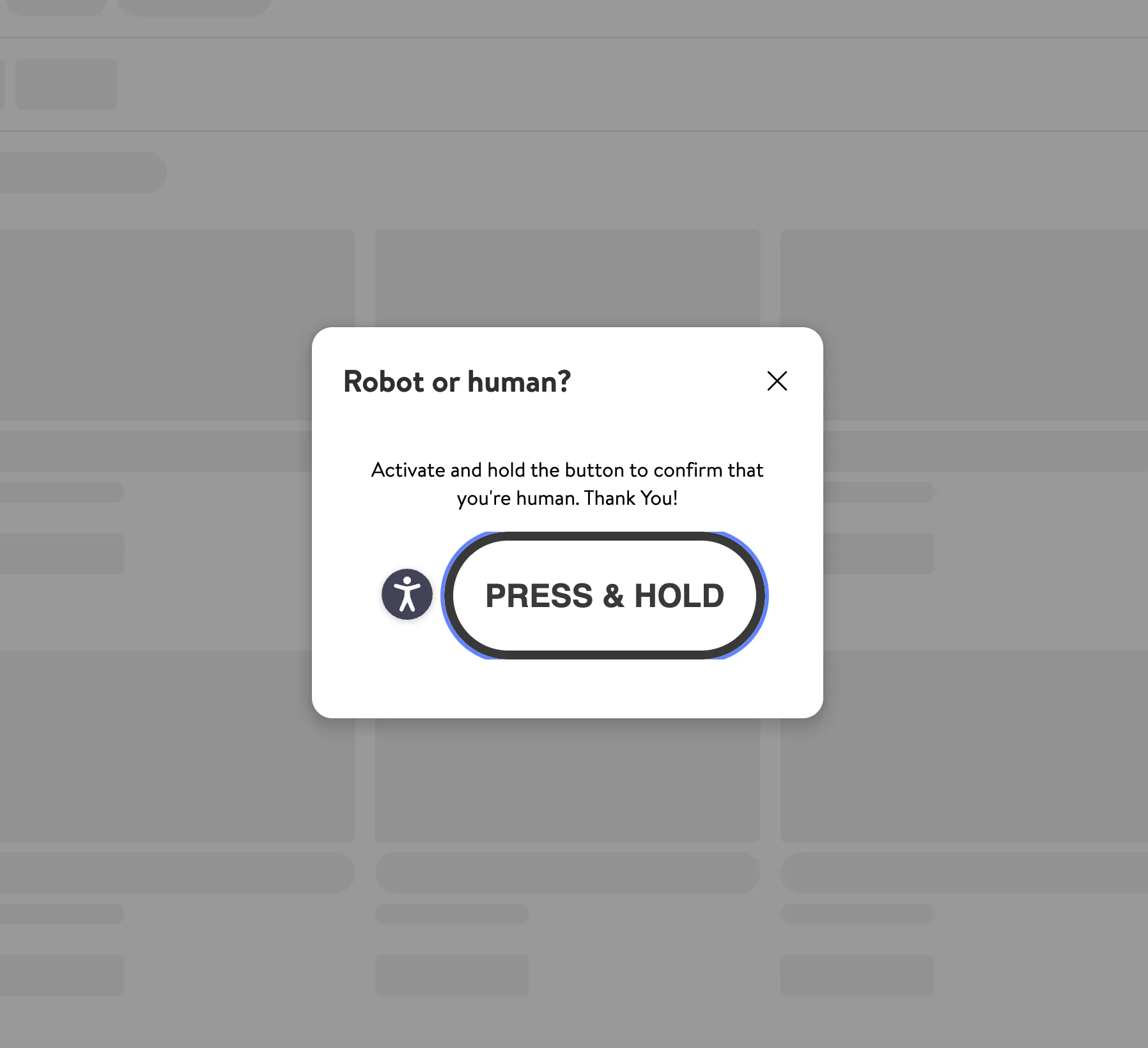
That said, run Step 3 against a larger batch of product URLs and you'll likely hit a wall. A CAPTCHA challenge can stop the whole scraping process cold:
So how do you handle this? That's what the next section covers.
Scaling limitations
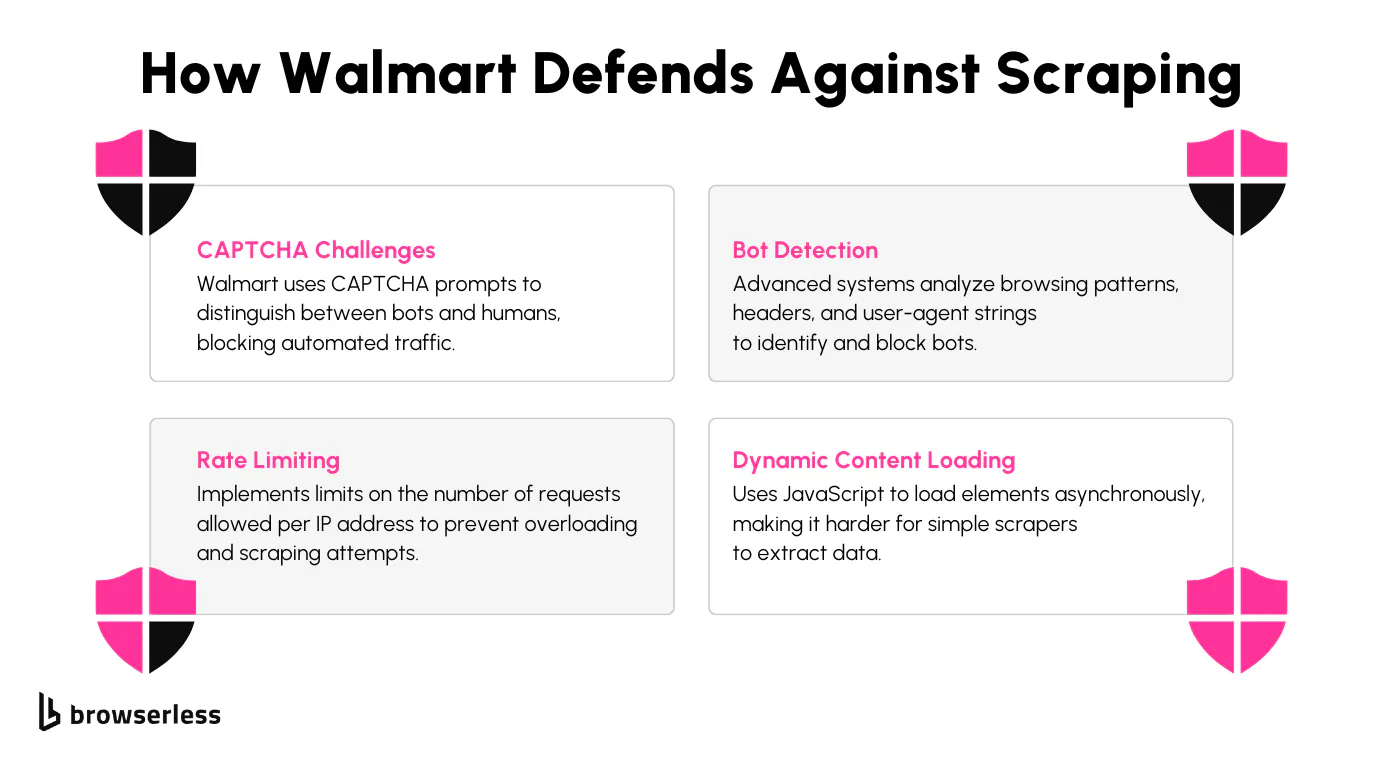
When you scrape Walmart product listings at any real volume, you'll hit Walmart's anti-bot measures. Here's what they look like and why they break naive scrapers.
CAPTCHA challenges
CAPTCHAs are designed to separate humans from bots. When requests to Walmart's servers become too frequent or look suspicious, CAPTCHA challenges fire. They block access until the user completes a task, like identifying objects in images. For an automated script, that's a hard stop on any web scraping Walmart workflow.
IP blocking
If traffic from your IP address looks abnormal to walmart.com, Walmart can block that address outright. This kicks in when patterns like repeated requests in a short window or hits across a large number of pages show up. That behavior doesn't match a real user, so the server cuts off the source. Rotating residential proxies and good proxy rotation help, but only if your scraper also behaves like a real user.
Detecting non-human behaviors
Rapid scrolling, clicking links at precise intervals, or hitting pages faster than a human could all signal bot activity. Walmart's systems watch for these patterns and flag activity that doesn't match how real users interact with the site. Pairing humanized interactions with proper anti-detection techniques is the difference between a scraper that runs for an hour and one that runs for a week.
Dynamically loaded content
Many elements on Walmart product pages, like reviews and availability, load via JavaScript. They aren't present in the initial HTML source. Traditional scrapers struggle here because they can't render the JavaScript needed to populate the full page.
Overcoming these limitations with BrowserQL
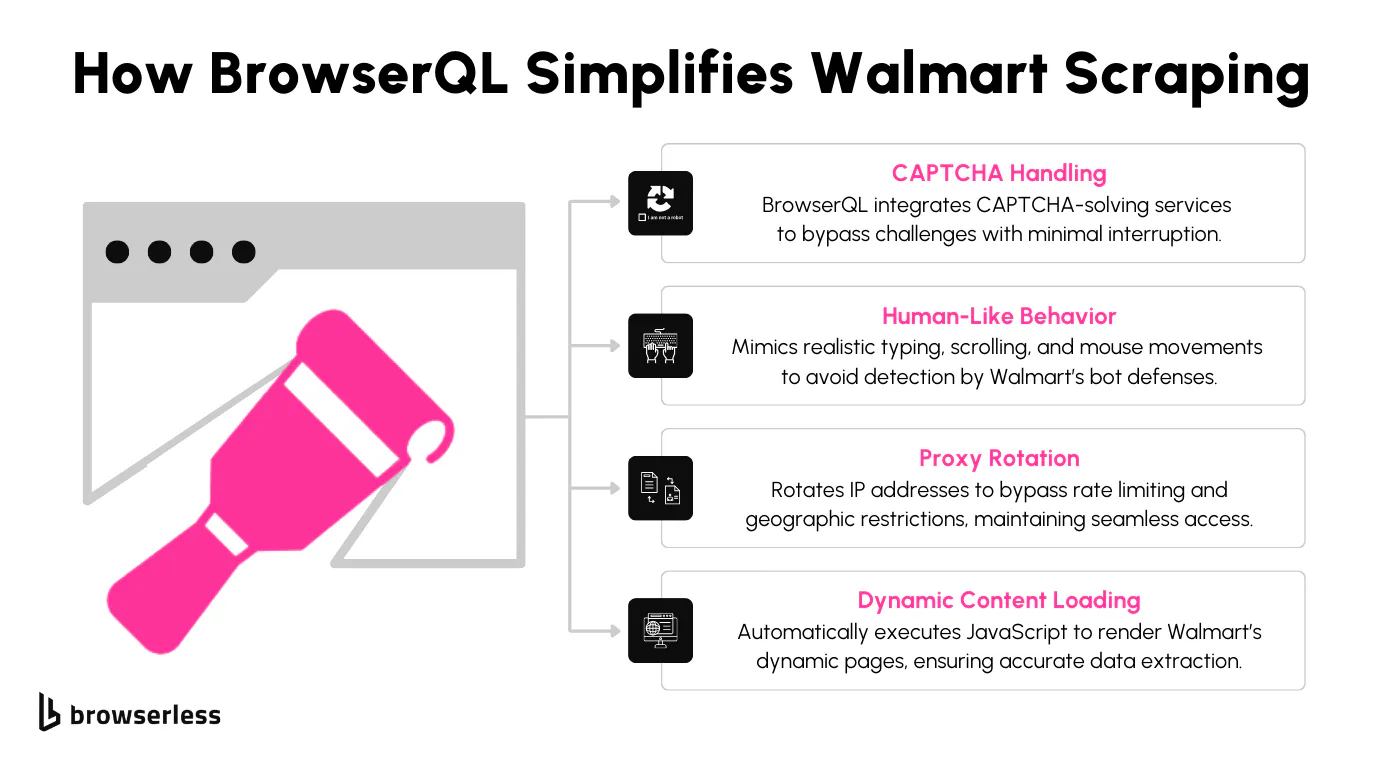
BrowserQL is built for sites like Walmart. It runs a real Chromium browser with humanized interactions, integrated proxy management, and a solve mutation that handles common CAPTCHA types (Cloudflare, reCAPTCHA) when they appear. The result is a scraping pipeline that holds up on tough Walmart product pages without you having to bolt on a separate anti-bot stack.
Setting up BrowserQL for Walmart scraping
Step 1: Create a Browserless account and retrieve your API key
The first step is to sign up for a Browserless account. Once you're registered, log in and head to your account dashboard. There, you'll find a section dedicated to API keys.
Copy your unique API key. You'll use it to authenticate every request to the BrowserQL API. The dashboard also shows your usage and subscription details, so you can keep track of activity and API calls.
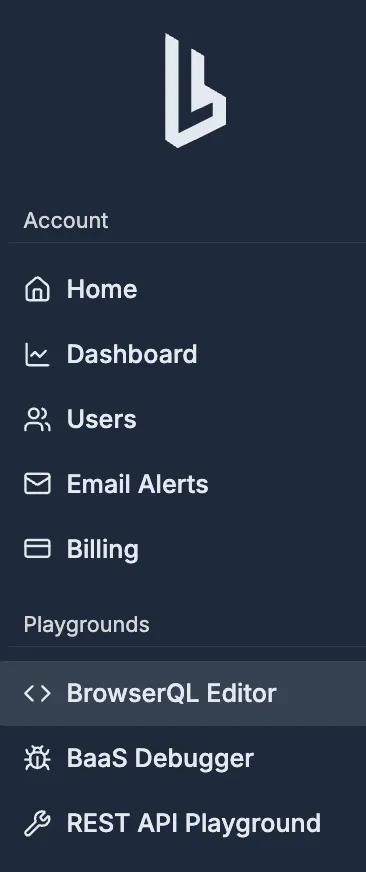
Navigate to the BrowserQL Editors section from your dashboard.
Step 2: Set up your development environment
Before writing scripts, make sure your development environment is ready. Install Node.js, which you'll use to run the scripts. Once Node.js is installed, open your terminal and run:
npm install node-fetch cheerio csv-writer csv-parser
These libraries let your script send requests to the BrowserQL API, process the HTML responses you get back from Walmart product pages, and read or write CSV files.
Step 3: Open the BrowserQL IDE
BrowserQL ships with a browser-based BrowserQL IDE at browserless.io/account/bql. It's a hosted GraphQL editor where you can write, test, and iterate on BQL mutations against a live Browserless session before wiring them into your scripts.
To get started:
- Log in to your Browserless dashboard.
- Open the BrowserQL Editors section from your account.
- Pick a region (for example,
production-sfo) and a route. For Walmart, choose/stealth/bqlso the session uses stealth mode tuned for bot-protected sites.
That's it. You can run mutations directly from the IDE, inspect the response, and tweak selectors live.
Step 4: Run a basic test query
Before scraping Walmart for real, test your setup. Here's a query that loads Walmart's homepage:
mutation TestWalmartQuery {
  goto(url: "https://www.walmart.com", waitUntil: networkIdle) {
    status
    time
  }
}
Paste this into the BrowserQL IDE and run it. The response should return a status code and the time it took to load. This test confirms that your API key and route are working. Once it does, you're ready to write scripts that extract product data, reviews, and other details.
Writing your BrowserQL script
Part 1: Collecting product URLs from the search page
You'll start by loading the Walmart search results page through BrowserQL, pulling the HTML, and parsing it for product links. The links go into a CSV for the next step.
Step 1: Import libraries and define constants
Start by importing the libraries and defining constants. These include the BrowserQL API endpoint, your API token, and paths for the input and output files.
import fetch from "node-fetch";
import * as cheerio from "cheerio";
import { createObjectCsvWriter } from "csv-writer";

// Constants
const BROWSERQL_URL = "https://production-sfo.browserless.io/stealth/bql";
const TOKEN = "your_api_token"; // Replace with your BrowserQL API token
const OUTPUT_CSV = "walmart-bql-product-urls.csv";
const SEARCH_URL = "https://www.walmart.com/search?q=iphone";
What's happening?
BROWSERQL_URL– the stealth BrowserQL endpoint. Use/stealth/bqlfor bot-protected sites like Walmart.TOKEN– authorizes your requests to BrowserQL.OUTPUT_CSV– where the extracted product URLs land.SEARCH_URL– the Walmart search page to scrape.
Step 2: Build and execute the BrowserQL query
Next, create a BrowserQL mutation that opens the search results page, waits for content to load, and fetches the HTML.
const query = `
  mutation ScrapeSearchPage {
    goto(url: "${SEARCH_URL}", waitUntil: networkIdle) {
      status
      time
    }

    waitForTimeout(time: 3000) {
      time
    }

    htmlContent: html {
      html
    }
  }
`;

(async () => {
  console.log(`Fetching search results from: ${SEARCH_URL}`);
  const response = await fetch(`${BROWSERQL_URL}?token=${TOKEN}`, {
    method: "POST",
    headers: { "Content-Type": "application/json" },
    body: JSON.stringify({ query }),
  });

  const data = await response.json();
  const html = data?.data?.htmlContent?.html;

  if (!html) {
    console.error("Failed to fetch HTML from the search page.");
    return;
  }

  // Parse HTML for product URLs
  const $ = cheerio.load(html);
  const urls = [];
  $("a[href*='/ip/']").each((_, element) => {
    const productPath = $(element).attr("href");
    if (productPath) urls.push(`https://www.walmart.com${productPath}`);
  });

  console.log(`Found ${urls.length} product URLs.`);

  // Write URLs to CSV
  const csvWriter = createObjectCsvWriter({
    path: OUTPUT_CSV,
    header: [{ id: "Product URL", title: "Product URL" }],
  });
  await csvWriter.writeRecords(urls.map((url) => ({ "Product URL": url })));
  console.log(`Product URLs saved to ${OUTPUT_CSV}`);
})();
What's happening?
- GraphQL query – sends instructions to BrowserQL to scrape the search page.
- HTML parsing – extracts product links by finding elements with
/ip/in thehref. - URL formatting – converts relative paths into absolute URLs by prepending the base domain.
- CSV output – stores the collected product links in a structured CSV.
Tip: if you'd rather skip the raw HTML + Cheerio step, BrowserQL also has a mapSelector mutation that returns structured data directly from selectors. It's a cleaner option when you know the exact fields you want.
Part 2: Extracting product details
With the URLs saved, the next step is to visit each Walmart product page and scrape the product title, price, rating, and review count.
Step 1: Define constants and read input CSV
The script defines constants for the BrowserQL API and the input and output CSV paths, then reads product URLs from the input CSV.
import fetch from "node-fetch";
import * as cheerio from "cheerio";
import fs from "fs";
import csvParser from "csv-parser";
import { createObjectCsvWriter } from "csv-writer";

// Constants
const BROWSERQL_URL = "https://production-sfo.browserless.io/stealth/bql";
const TOKEN = "your_api_token_here"; // Replace with your actual BrowserQL API token
const INPUT_CSV = "walmart-bql-product-urls.csv";
const OUTPUT_CSV = "walmart-product-details.csv";

// Function to read product URLs from a CSV file
const readProductUrls = async (filePath) => {
  const urls = [];
  return new Promise((resolve, reject) => {
    fs.createReadStream(filePath)
      .pipe(csvParser())
      .on("data", (row) => {
        if (row["Product URL"]?.trim()) {
          urls.push(row["Product URL"].trim());
        }
      })
      .on("end", () => {
        console.log(`Loaded ${urls.length} URLs from ${filePath}`);
        resolve(urls);
      })
      .on("error", (error) => reject(error));
  });
};
What's happening?
- Imports – loads
node-fetch,cheerio,csv-parser,csv-writer, and Node'sfsso the script can talk to BrowserQL, parse HTML, and handle CSVs. - Reading URLs – pulls product links from the input CSV.
- Validation – filters out empty or invalid entries.
- Output collection – gathers URLs into an array for processing.
Step 2: Fetch HTML using BrowserQL
For each product URL, the script retrieves the HTML using a GraphQL mutation. Note the solve block: if Walmart shows a CAPTCHA, BrowserQL will attempt to solve it before continuing.
// BrowserQL mutation to fetch HTML content
const fetchHtmlFromBrowserQL = async (url) => {
  const query = `
    mutation FetchProductDetails {
      goto(url: "${url}", waitUntil: networkIdle) {
        status
        time
      }

      # If a CAPTCHA appears, try to solve it before reading the page.
      # Swap the type to match what Walmart serves you (cloudflare, hcaptcha, recaptcha).
      solve(type: cloudflare) {
        found
        solved
        time
      }

      waitForTimeout(time: 3000) {
        time
      }
      htmlContent: html {
        html
      }
    }
  `;

  const body = JSON.stringify({
    query,
    variables: {},
    operationName: "FetchProductDetails",
  });

  try {
    const response = await fetch(`${BROWSERQL_URL}?token=${TOKEN}`, {
      method: "POST",
      headers: { "Content-Type": "application/json" },
      body,
    });

    const data = await response.json();

    if (data?.data?.htmlContent?.html) {
      console.log(`HTML content successfully retrieved for URL: ${url}`);
    } else {
      console.error(`Failed to retrieve HTML content for URL: ${url}`);
    }

    return data?.data?.htmlContent?.html || null;
  } catch (error) {
    console.error(`Error fetching HTML for URL ${url}:`, error);
    return null;
  }
};
What's happening?
- GraphQL mutation – loads the product page and pulls back its HTML.
solvemutation – attempts a CAPTCHA solve.foundtells you whether one was detected,solvedtells you the outcome.- Error handling – logs network or data retrieval issues for troubleshooting.
- HTML retrieval – returns the HTML for parsing.
Step 3: Parse product details and save to CSV
Using Cheerio, the script extracts specific product details from the HTML and writes them to an output CSV.
// Function to parse product details
const parseProductDetails = (html, url) => {
  const $ = cheerio.load(html);

  const name = $("h1#main-title").text().trim() || "N/A";
  const price = $('span[itemprop="price"]').text().trim() || "N/A";
  const rating =
    $("div.w_iUH7")
      .text()
      .match(/[\d.]+/)?.[0] || "N/A";
  const reviews =
    $('a[itemprop="ratingCount"]').text().trim().replace(/\D+/g, "") || "0";

  return { url, name, price, rating, reviews };
};

// Function to save product details to CSV
const saveProductDetailsToCsv = async (data) => {
  const csvWriter = createObjectCsvWriter({
    path: OUTPUT_CSV,
    header: [
      { id: "url", title: "Product URL" },
      { id: "name", title: "Product Name" },
      { id: "price", title: "Price" },
      { id: "rating", title: "Rating" },
      { id: "reviews", title: "Number of Reviews" },
    ],
  });

  await csvWriter.writeRecords(data);
  console.log(`Product details saved to ${OUTPUT_CSV}`);
};

// Main process
(async () => {
  try {
    console.log(`Reading product URLs from ${INPUT_CSV}`);
    const productUrls = await readProductUrls(INPUT_CSV);

    if (!productUrls.length) {
      console.error(
        "No product URLs found in the CSV file. Please check the file format.",
      );
      return;
    }

    console.log(`Loaded ${productUrls.length} product URLs.`);
    const productDetails = [];

    for (const url of productUrls) {
      console.log(`Processing ${url}`);
      const html = await fetchHtmlFromBrowserQL(url);

      if (html) {
        const details = parseProductDetails(html, url);
        productDetails.push(details);
      } else {
        console.error(`Failed to fetch HTML for URL: ${url}`);
      }
    }

    if (productDetails.length) {
      await saveProductDetailsToCsv(productDetails);
      console.log(`Scraping complete. Details saved to ${OUTPUT_CSV}`);
    } else {
      console.error(
        "No product details were scraped. Please verify the URLs and selectors.",
      );
    }
  } catch (error) {
    console.error("Error in scraping process:", error);
  }
})();
What's happening?
- Parsing details – extracts the product name, price, rating, and review count from the HTML.
- Data structuring – formats the parsed data into an array of objects.
- CSV output – saves the collected product details to a CSV file for further analysis.
You now have a complete code path for Walmart scraping with BrowserQL. From here you can layer on proxy rotation, structured JSON output for downstream pipelines, or pagination logic to walk multiple pages of Walmart search results. If you're connecting Puppeteer or Playwright to Browserless instead of using BrowserQL directly, prefer puppeteer-core over the full puppeteer package since you don't need the bundled Chromium.
Web scraping Walmart with Python
Prefer Python? The same BrowserQL workflow translates cleanly. You can hit the BrowserQL endpoint with requests, then parse the response with BeautifulSoup or lxml. The mutation, response shape, and selectors stay the same. That makes BrowserQL a flexible Walmart scraping API, whether you're writing Node.js or doing Python web scraping.
import requests

BROWSERQL_URL = "https://production-sfo.browserless.io/stealth/bql"
TOKEN = "your_api_token_here"  # Replace with your actual BrowserQL API token

# Replace with your actual product URL
PRODUCT_URL = "https://www.walmart.com/ip/Apple-iPhone-15/2748056293"

query = f"""
mutation ScrapeWalmartProduct {{
  goto(url: "{PRODUCT_URL}", waitUntil: networkIdle) {{
    status
    time
  }}
  waitForTimeout(time: 3000) {{
    time
  }}
  htmlContent: html {{
    html
  }}
}}
"""

response = requests.post(
    f"{BROWSERQL_URL}?token={TOKEN}",
    headers={"Content-Type": "application/json"},
    json={"query": query},
)

data = response.json()
html = data.get("data", {}).get("htmlContent", {}).get("html", "")
print(f"Status code: {response.status_code}")
print(html[:500])
From there, parse the HTML and write the extracted product data to a JSON or CSV file for downstream analysis.
Conclusion
BrowserQL makes Walmart scraping more reliable. It handles CAPTCHAs through the solve mutation, runs a real Chromium browser so dynamic content actually renders, and routes traffic through residential proxies so your IPs hold up. Whether you're tracking competitor pricing across Walmart stores or analyzing review data to understand consumer preferences, you get a single GraphQL API instead of a patchwork of anti-bot tools. The same approach applies to scraping e-commerce sites like Shopify, Amazon, or Target. Ready to try it on your own product set? Sign up for BrowserQL and run your first query against the live IDE.
FAQ
Is scraping Walmart legal?
Scraping publicly available data from Walmart is generally permissible, but it's worth reviewing Walmart's terms of service to stay compliant and avoid abusive scraping patterns that disrupt their platform.
What can I scrape from Walmart?
You can extract product details, Walmart prices, stock availability, customer reviews, and seller information, all of which are useful for market research and competitive analysis. With the right Walmart scraper, even tricky areas like search results, previous price history, and multiple pages of reviews are within reach.
How does BrowserQL handle Walmart's anti-bot defenses?
BrowserQL uses humanized interactions, supports proxy rotation and rotating residential proxies, and reduces browser fingerprinting to lower detection rates. That combination keeps scraping running even with Walmart's anti-bot measures in place.
Can I scrape all product reviews on Walmart?
Yes. BrowserQL supports pagination and dynamic loading, so you can collect reviews across multiple pages without missing data points.
Does Walmart block automated scrapers?
Walmart uses strong anti-bot measures, including CAPTCHA challenges, rate limiting, and IP blocking. BrowserQL is built to work around these obstacles and keep your Walmart scraping pipeline running.
Can I scrape Walmart without triggering CAPTCHAs?
BrowserQL's humanized browsing behavior reduces how often CAPTCHAs appear. For the times they do, the solve mutation handles common types (Cloudflare, hCaptcha, reCAPTCHA) so the script can keep going.